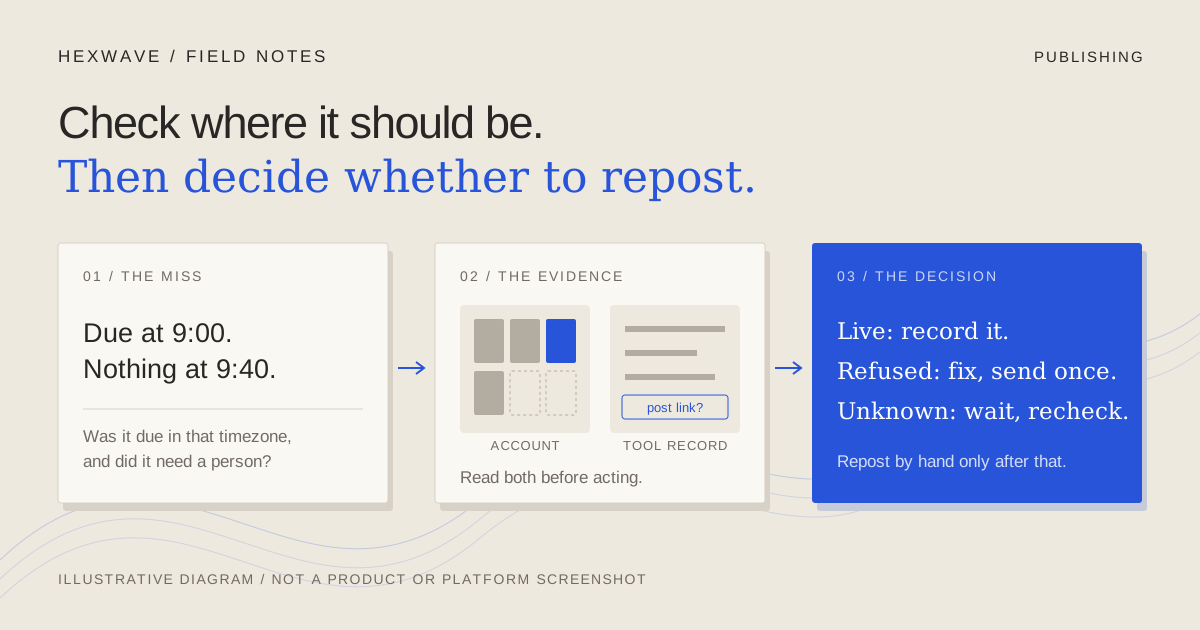
A post was meant to go out at 9:00. It's now 9:40, and you can't see it. The fast fix is to upload the file again by hand.
Don't, yet. A missing post is an inconvenience. A post that went live while your tool reported a problem, followed by a second copy you uploaded in a hurry, is a public mess with two comment threads and a duplicate you now have to delete.
Most "my scheduled post didn't publish" situations fall into one of five groups: it isn't due yet, the account connection broke, the platform rejected the media, the platform is still processing it, or nobody can say what happened. The first four have a cause you can find and fix. The fifth needs a check before anyone touches the upload button.
This guide gives you a way to tell them apart, a verification order that avoids double posts, and the places TikTok, Instagram and YouTube keep the evidence. Platform details were checked against the linked developer documentation and help centers on 14 October 2026. Interfaces change; treat menu names as a starting point and your own account as the final word.
Sort the problem into one of five situations
Start with what you can actually see, not with what you suspect.
| Situation | What you usually see | What it means | Safe next move |
|---|---|---|---|
| Not yet due, or waiting for a person | The tool still says scheduled, or a reminder or draft is sitting on a phone | The time or timezone is different from what you expected, or the route needs someone to finish the post natively | Check the scheduled time, its timezone and the publishing method. Finish the native step if one is required. |
| Account disconnected | A message about lost authorization, an expired connection or a reconnect prompt | The tool no longer has permission to post for that account | Reconnect, then resend only the items that failed. |
| Media rejected | A failure with a stated reason: format, length, size, aspect ratio, unavailable audio, policy | The platform received the request and refused it | Fix the stated problem, then send once. |
| Still processing | The post exists but isn't public yet, or the tool shows it in progress | The platform accepted the file and hasn't finished with it | Wait and recheck. Don't upload another copy. |
| Unclear outcome | "Unknown error", a timeout, or a tool and a platform that disagree | The request may or may not have succeeded | Check the destination before doing anything else. |
The last row is the one people get wrong, because it looks like a failure. A timeout means the tool stopped waiting for an answer. It doesn't mean the platform said no.
Buffer's own Facebook error library includes a message saying a post is "likely live" despite showing as failed, and tells users to check Facebook before deleting the failed item. That's one vendor and one network, but the shape of the problem is general. A tool's failure label is a report from the tool, not a fact about your account.
Check in this order before you post anything by hand
The order matters because each step can end the investigation. If you find the post live in step two, the rest is bookkeeping.
- Confirm the post was actually due. Find the scheduled time in the tool and note its timezone, then the timezone of the person checking. A post set for 9:00 Pacific hasn't failed at 9:40 Eastern. Check whether the route was automatic or a reminder that needed someone to finish in the app.
- Look at the destination account itself. Sign in as the account and check the profile grid, plus the places a post can exist without being public: drafts, the inbox or notifications, private or "only me" posts, and the platform's content manager. Search the profile for the caption's first words. Check the right account if you manage several.
- Open the tool's record of that post. Look for a published link or post ID (that's the receipt), an error message with a reason, or a status like "processing" or "sending". Copy the exact wording; you'll need it if you contact support.
- Decide from what the two sources say together.
- Live on the platform: record the link and mark the item published. Don't retry it, even if the tool says it failed.
- Failed with a clear reason and absent from the account: fix the reason, then send once.
- Processing on the platform: wait. Recheck at a set time instead of refreshing every minute.
- Absent from the account and no clear reason from the tool: wait a short, agreed time, check the account again, and only then post manually. Note in your plan that it was posted by hand and when, so nobody retries the original later.
- Remove or cancel the original item once you've posted manually. A failed item left in a queue can be retried by a teammate, or by a "retry" button pressed a week later by someone who doesn't know the story.
If two people share an account, decide who does step four. Two careful people each reposting "just to be safe" is how the duplicate happens.
Where each platform keeps the evidence
The three platforms don't report the same states, and the differences change what "check the account" means.
TikTok
TikTok's Content Posting API has two routes, and they fail differently. In Direct Post, a third-party tool publishes for you. In the upload route, the tool sends the video to your TikTok inbox and you finish posting in the app. According to TikTok's Get Post Status reference, a "complete" status means the video was posted for Direct Post, but for the upload route it means the user opened the inbox notification and finished posting. If your tool uses the inbox route, an unfinished post is waiting for you, not failing.
The same reference says public posts go through TikTok's moderation before the post ID is returned, so a short gap between "sent" and a visible, linkable post isn't necessarily an error. Its failure reasons separate problems such as file format or duration checks from auth_removed, which means the account owner withdrew the tool's access during the process.
Two other things are worth checking on the post itself. TikTok's content sharing guidelines say apps that haven't passed TikTok's audit can only post privately. If a post exists but only you can see it, look at its privacy setting before calling it a failure. And TikTok's token documentation gives refresh tokens a 365-day life, so a working connection can still lapse in time and need you to sign in again.
Publishing to Instagram through Meta's API happens in two steps: the tool creates a media container, then publishes it. Meta's content publishing documentation lists the container states as in progress, finished (ready to publish), published, error, and expired. A container that isn't published within 24 hours expires. Meta tells developers to check the container's status when the publish call doesn't return a media ID. That's the API's own version of "check before you assume".
You won't see container states in a scheduler, but the tool's messages often map to them. Buffer's Instagram error library, for example, includes messages for media that wasn't ready when the post was sent, unsupported video formats, lost authorization and a daily posting limit. Meta's page applies a rolling 24-hour limit to API-published posts but states two different figures in different sections, so take your tool's limit message at face value rather than relying on a number from a blog.
Connections expire too. For accounts connected through Instagram Login, Meta's business login documentation says long-lived tokens are valid for 60 days and expire if they aren't refreshed in that window. A well-built tool refreshes them for you. If it can't, you'll see a reconnect prompt.
YouTube
A scheduled YouTube video already exists before its publish time. It's uploaded as private and becomes public at the scheduled time, according to YouTube's scheduling help. So on YouTube, step two of the check means looking in YouTube Studio's content list, not just the public channel page. If the video is there and still private after its time, read its status and notices before uploading anything new.
The same help page notes that if the channel has a Community Guidelines strike, scheduled videos don't publish during the penalty period and need rescheduling afterward. The upload guide says a video can be published once standard-definition processing is complete, while higher qualities can take longer.
The YouTube Data API's videos reference separates an upload that failed (with reasons such as an invalid file or codec) from one YouTube rejected (with reasons including copyright and duplicate). It also documents a trap worth knowing: if you set a scheduled time that has already passed, the video publishes immediately. Rescheduling a "stuck" video to "a few minutes ago" is therefore the same as publishing it now.
For tools connected through Google sign-in, Google's OAuth documentation lists reasons a connection stops working, including the user revoking access and the token going unused for six months. That's why reconnecting can fix an account that "was working last month".
A worked example of an unclear outcome
This example is illustrative, not a recorded incident.
A small team schedules an Instagram Reel for Tuesday 9:00 a.m. Eastern through a scheduler. At 9:30, the tool shows the item as failed with a generic error. A teammate's first instinct is to upload the Reel from her phone.
Instead, she runs the check. The time was right and the route was automatic. She opens the brand account and finds the Reel on the grid, posted at 9:04 with the approved caption. The tool had lost track of the result, not the post.
She copies the Reel's link into the plan, marks the item published, and deletes the failed item from the queue so nobody presses retry. She sends the tool's support team the error text and the time. Total cost: five minutes and no duplicate.
Change one fact. If the Reel isn't on the grid and the tool's message mentions lost authorization, the cause is a broken connection. She reconnects the account, checks which queued items are still scheduled, and resends only the one that failed. If there's no Reel and no useful message, she checks again after an agreed wait, then posts manually and records that she did.
Reconnecting fixes the account, not the missed post
When a connection breaks, two problems happen at once: the account needs reauthorizing, and some posts may have missed their time. Fix them separately.
Reconnect from the tool's account settings, and approve every permission the platform screen requests. Then open the queue. Some tools keep failed items and wait for you to retry them; Buffer, for example, says refreshing a channel doesn't delete scheduled content and that failed posts are retried manually. Check what your own tool does before assuming either way.
Run the full check on each missed item before resending it. A broken connection usually means nothing went out. "Usually" isn't enough when the result is public.
What your scheduler should tell you
Once you've worked through a failure, you know what you needed from the tool: whether the post is scheduled, sent, published with a link, failed with a reason, or unknown. If your tool collapses those into "scheduled" and "failed", you'll be doing the platform check every time.
When you compare tools, look for a published link or post ID on each successful item, a stated reason on each failure, a visible warning when an account needs reconnecting, and a separate state for "we're not sure". Ask whether the tool retries automatically after a timeout. An automatic retry is reasonable after a clear refusal; after an unclear outcome, it can produce the double post you're trying to avoid.
Hexwave is designed around that last rule. Its planned publishing workflow marks an unclear result as needing a check, rather than retrying blindly or reporting failure as fact. That's a design commitment for a product still in early access, not a working publisher you can use today. The content calendar page shows how the review and scheduling states are meant to differ, using a demonstration that runs in your browser and doesn't connect accounts or publish anything.
Keep a one-line record for every miss
Whatever the outcome, write it down beside the post in your plan: what the tool said, what you found on the account, what you did and when. "Tool: failed, unknown error. Account: live at 9:04. Action: marked published, removed from queue." The next person to look at that row won't need to guess.
If you're preparing the same video for several destinations, the cross-platform publishing guide covers checking each one before it goes out, which means fewer of these checks afterward.
Sources & reference material
- Content Publishing — Meta for Developers (Instagram Platform), checked October 14, 2026. Defines container status_code values EXPIRED (not published within 24 hours), ERROR, FINISHED, IN_PROGRESS and PUBLISHED, and advises querying status when media_publish returns no media ID. The page states two different rolling 24-hour publishing limits (100 in the rate-limit section, 50 in the carousel section) without reconciling them. Developer documentation for apps; it does not describe any particular scheduler's interface.
- Business Login for Instagram — Meta for Developers (Instagram Platform), checked October 14, 2026. Long-lived Instagram User access tokens are valid for 60 days and can be refreshed; tokens not refreshed within 60 days expire. Applies to the Instagram Login route; does not cover Facebook Login tokens or what happens when a user revokes access.
- Get Post Status — TikTok for Developers, checked October 14, 2026. Direct fetch was refused from our network on 2026-10-14; content was read through search-engine extracts of this official page. Establishes that PUBLISH_COMPLETE means posted for Direct Post but means the user finished posting from the inbox for Upload Content, that FAILED carries a fail_reason (e.g. auth_removed, format and duration checks), and that public posts pass moderation before a post ID is returned. Re-verify against the live page before publication.
- Content Sharing Guidelines — TikTok for Developers, checked October 14, 2026. Read through search-engine extracts (direct fetch refused). States that unaudited API clients can only post with SELF_ONLY (private) visibility. Describes app review status, not any specific scheduler's audit state.
- User Access Token Management — TikTok for Developers, checked October 14, 2026. Read through search-engine extracts (direct fetch refused). Refresh tokens are valid for 365 days; access tokens expire per expires_in (other TikTok docs state 24 hours); a failed refresh usually requires the user to log in again.
- Videos resource — YouTube Data API (Google for Developers), checked October 14, 2026. Defines uploadStatus (deleted, failed, processed, rejected, uploaded), rejectionReason values including duplicate and copyright, processingStatus values, and publishAt: settable only for a private, never-published video; a past publishAt publishes immediately. API reference, not a description of YouTube Studio screens.
- Using OAuth 2.0 to Access Google APIs — Google for Developers, checked October 14, 2026. Lists reasons a refresh token stops working: user revoked access, six months unused, password change with Gmail scopes, token cap, and 7-day refresh tokens for external apps in Testing status. Applies to any Google API client, including tools that post to YouTube.
- Schedule video publish time — YouTube Help, checked October 14, 2026. A scheduled video is private until its time; with a Community Guidelines strike, scheduled videos don't publish during the penalty period and must be rescheduled. Help-center guidance for the native scheduler.
- Upload YouTube videos — YouTube Help, checked October 14, 2026. A video can be published once SD processing is complete; higher qualities can take longer; checks can continue after publishing. Does not give a guaranteed processing time.
- Facebook error library — Buffer Help Center, checked October 14, 2026. Vendor documentation for one scheduler. Includes an error stating the post is likely live, with advice to check Facebook before deleting the failed item. Used as an example of an unclear outcome; not evidence about other tools.
- Instagram error library — Buffer Help Center, checked October 14, 2026. Vendor documentation for one scheduler: lost authorization, media not ready, unsupported format and daily-limit messages. Its stated Instagram daily limit (25) differs from Meta's developer page; neither figure is repeated in the article as a rule.
- Refreshing a channel in Buffer — Buffer Help Center, checked October 14, 2026. Read through search-engine extract. Buffer's guidance that refreshing a lost connection re-authorizes posting without deleting scheduled content, and that failed posts are retried manually. Buffer-specific behavior.