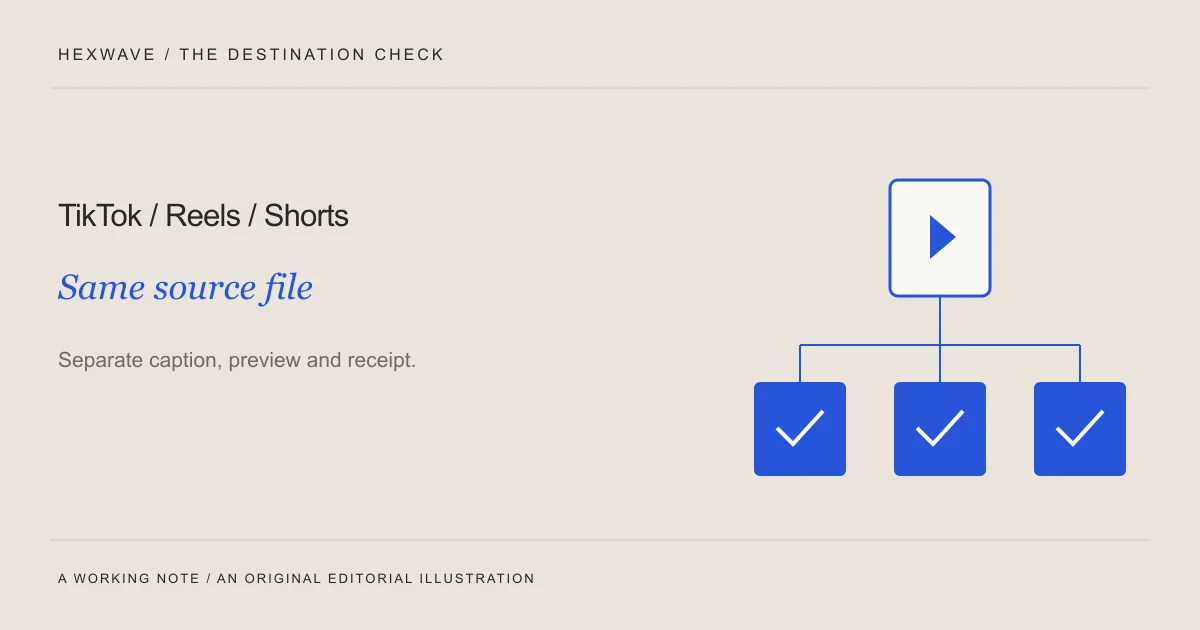
You can reuse a product video across TikTok, Instagram Reels and YouTube Shorts. Start with a clean master file, then prepare a separate publication record for each destination.
The work you can share is the product explanation: the footage, the verified claim and much of the edit. The work you still need to check includes how the frame appears, which audio you're using, what the accompanying text says and where the viewer can go next.
This is a preparation and verification workflow, not a tested walkthrough of every current app screen. Platform details below were checked against the linked documentation on 4 October 2026. Account features and publishing routes can differ, so the final preview on your actual account remains part of the work.
Make a master you can adapt
Keep an export from your editing project before adding destination-specific stickers, interface elements or music. Save the project and source assets as well. A downloaded copy of a finished post may contain things you don't want on the next destination, and gives you less room to correct them.
A practical starting choice for a full-screen vertical product video is a 9:16 composition. Treat that as a production choice, not a complete specification for every upload route. Check the current acceptance requirements in the app or scheduler you intend to use.
For a software demo, keep the essential interface action inside a frame you can read on a phone. For a physical product, leave room around the action so platform controls and captions don't obscure it. Avoid relying on a single permanent “safe zone” diagram: check the actual destination preview with its visible interface.
Name the master by the idea and version, such as assign-comment-master-v03. Keep the export you're using beside the approved caption. A filename doesn't establish approval, but it helps you identify which file the decision refers to.
Work through one post before duplicating the process
Imagine a fictional software demo showing a user assign an owner to a review comment. Its opening asks, “Who's handling this change?” The recording shows the selection and ends with the teammate's name beside the note.
The core explanation works on all three destinations without claiming that all three will distribute it the same way. Our task is to prepare an understandable post in each place, then inspect what actually published.
| Destination | Keep from the master | Prepare and check separately |
|---|---|---|
| TikTok | The starting question, manual selection and visible result | Caption, audio choice, account, required disclosures and the available next-action route |
| Instagram Reels | The same task and product behavior | Cover preview, caption placement, audio choice, account and the way the post appears with interface controls |
| YouTube Shorts | The same demonstration and result | Title, description, any related-video or channel link route, audience settings and copyright checks |
There is no need to invent a new product benefit for each destination. Adapt what is necessary for someone to understand the existing one.
Keep the audio decision separate
Original narration makes it easier to maintain one understandable explanation, but you still need permission for any voice, recording or music you use. Don't assume a track available inside one app can travel with your exported file to every other service.
TikTok provides its Commercial Music Library for branded content and ads, with tracks pre-cleared for commercial use on TikTok. Check TikTok's commercial-music guidance for the intended use. It does not establish permission to reuse that track elsewhere.
For the example demo, we can publish the original narration without a music bed. If you want music, record the track and the basis for using it on each destination. Check the terms that apply to that account and use, rather than treating a visible song picker as universal permission.
YouTube also has a specific rule worth catching before upload: a Short longer than one minute with an active Content ID claim is blocked globally under its current guidance. The same page explains music choices and duration restrictions. Read the three-minute Shorts guidance when preparing that kind of upload.
Give each next action a route that exists
“Click the link below” is easy to leave in a reused caption. It can be wrong on the destination where you paste it.
YouTube states that ordinary URLs in Shorts descriptions and comments are not clickable. Its link-sharing documentation distinguishes those locations from channel-profile links and native related-video links.
For our demonstration, the closing line could simply be “Give the next review comment an owner.” That's a useful action within the lesson and doesn't depend on an external link. If the purpose is to send the viewer to a product page, inspect the route available on that account and write the instruction to match it.
Do the same on TikTok and Instagram. Check the actual profile or supported link feature rather than borrowing instructions from another account. Open the destination yourself and confirm that it leads to the intended page. An old launch page or unrelated homepage can break the path even when the link works technically.
Keep the accompanying text specific to the demo. The TikTok caption might describe the unresolved comment; the Shorts title might state the task directly. These are editorial choices, not claims that a particular wording pattern is favored by a platform.
Preview the same moments in every app
Inspect the opening, the product action and the final result. Those are the points at which a crop or interface overlay can damage the explanation.
For the assignment demo, check whether the question is readable at the beginning, whether the teammate selection remains visible and whether the final name sits behind the interface. Move captions or revise the export if necessary. Don't merely confirm that the file uploaded.
On Instagram, inspect the cover and any crop shown by the publishing interface as well as the moving video. On TikTok, check the caption and on-screen elements together. On YouTube, check the title and the resulting video classification, not just the source filename.
For standard YouTube channels, the current documentation classifies square or vertical videos up to three minutes uploaded on or after 15 October 2024 as Shorts. Use that official eligibility guidance rather than assuming that a shorts folder name or hashtag determines the result.
If a preview doesn't expose a particular view, note the uncertainty and inspect the post after publication. Don't record an unchecked field as passed.
Know whether your scheduler publishes or reminds
A scheduled item can mean either that a tool will send the post automatically or that it will notify a person to finish in the native app. These are different responsibilities.
For example, Buffer documents a notification-publishing workflow that requires completing the post on a mobile device. When a selected route works this way, assign the final action to someone. A reminder arriving on an unattended phone isn't publication.
Before scheduling, record the account, date, time, timezone and publishing method. Confirm any required native finishing, including audio or interactive features. If the tool cannot complete the kind of post you need, use the supported manual route and make that work visible in the plan.
Hexwave's planned calendar workflow is being built around review and publishing visibility. The current frontend is a demonstration, so it isn't a working scheduler you can use to send these posts today.
Record the outcome for each destination
After the scheduled time or manual upload, inspect the actual account. Save the post URL or other available publication record, then check that the video, caption and account match what was approved.
Keep outcomes separate. TikTok may have published while Instagram is still processing and the Shorts upload needs attention. Marking the whole row “done” hides the next action.
If the outcome is unclear, check the destination and the tool's record before uploading another copy. If you find a rejected file, use the stated reason to correct it. If you find the post already present, record that fact rather than creating a duplicate to make the workflow look complete.
Download the three-destination preparation and publication sheet (.txt) ↓The review guide covers the content checks before this stage. Once those pass, reuse the work you can share and give each destination its own final decision. You finish with a record of what appeared where, not just a folder of exports.
Sources & reference material
- Understand three-minute YouTube Shorts — YouTube Help, checked October 4, 2026.
- Sharing links with your audiences — YouTube Help, checked October 4, 2026.
- Commercial Music Library — TikTok for Business, checked October 4, 2026.
- Using notification publishing — Buffer Help Center, checked October 4, 2026.